




Goldzino App
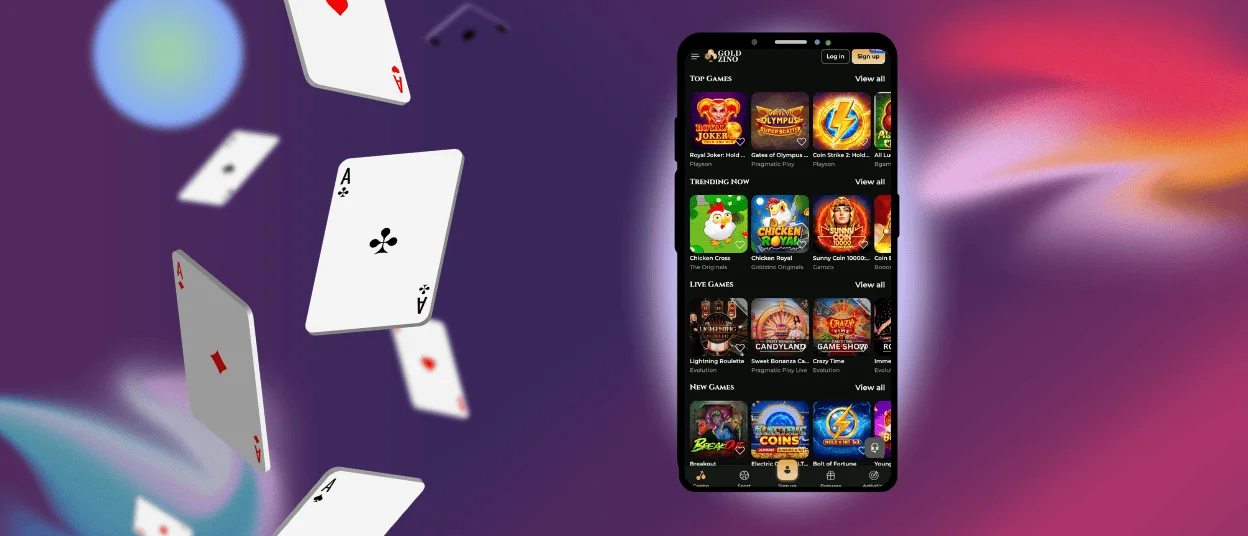
The Goldzino app gives you full access to our casino on Android and iOS through a mobile browser. Add a home‑screen shortcut and you open the lobby in one tap with the same account you use on desktop.
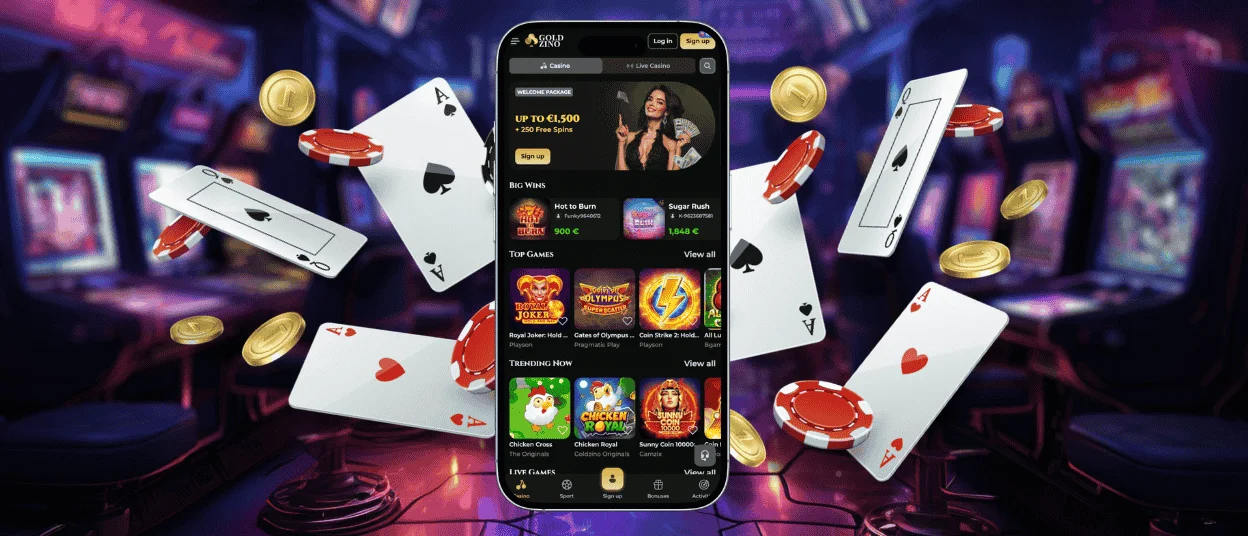
We built this app format for fast navigation on a small screen. The layout stays readable, buttons stay easy to tap, and key tools stay close while you play. You can browse slots, open Live Casino tables, check promotions, and contact support inside the same mobile view.



What the Goldzino App Is
The Goldzino app is not a store download. It works as a browser‑based solution that adapts our platform to phones and tablets. You keep one profile across devices, so your balance, favorites, and bonus status stay in sync when you switch between mobile and desktop.
This format also helps you avoid outdated versions. When we update the platform, you simply open the application again, and you use the latest layout. You do not need to install updates manually, and you do not need extra storage for a large install file.
Why We Use a Browser-Based App
We use a Progressive Web App (PWA) approach. Your browser creates an icon that opens Gold Zino in an app‑style window. You see fewer browser elements and more space for the lobby and games. The shortcut keeps you on the official platform, which is safer than searching for random “downloads.”
A PWA also fits short sessions. You can open the casino, launch a title, and return to the lobby in a few taps. When you come back later, the app view often returns you to the last section you used.
Key Features on Mobile
The Goldzino application keeps the same core functions as the desktop version, but it adapts them for touch control. This table highlights the tools players use most often.
| Mobile feature | How it works in the Goldzino application | What it helps you do |
| Home‑screen shortcut | You add an icon from your browser menu | Start a session without typing the address again |
| App‑style window | The shortcut opens in a focused view | Keep more space for the lobby and game screen |
| Account sync | The platform links balance and settings to your profile | Switch devices without losing your place |
| Touch-first layout | We space buttons and keep menus compact | Tap accurately and browse faster |
| Quick search | Search stays available from the header | Find a title like Sweet Bonanza or Bac Bo in seconds |
| One cashier area | Deposit and withdrawal tools stay in the same section | Manage payments without jumping between pages |
Goldzino App on Android
On Android, you can use the app through Chrome or another modern browser. Setup takes a minute, and the shortcut opens in a clean window.
- Open the official Goldzino website in Chrome.
- Tap the three‑dot menu in the browser.
- Select Add to Home screen or Install app.
- Confirm the name and tap the new Goldzino icon.
After you add the shortcut, sign in as usual. The mobile view keeps your recent games ready, so you can return to a slot you played earlier without long browsing. If a cashier confirmation opens in a new tab, allow pop‑ups for Goldzino and try again.
Goldzino Application on iOS
On iPhone and iPad, the Goldzino app works best in Safari. Safari shows the “Add to Home Screen” option more reliably than in‑app browsers, and it keeps sessions stable during longer play.
- Open Gold Zino in Safari.
- Tap Share (the square with an arrow).
- Choose Add to Home Screen.
- Confirm and tap Add to save the icon.
The icon launches the platform in a focused view, so you see less browser clutter. On iPad, landscape mode gives you more room for category rows and live streams.
Using Goldzino on Desktop and Laptop
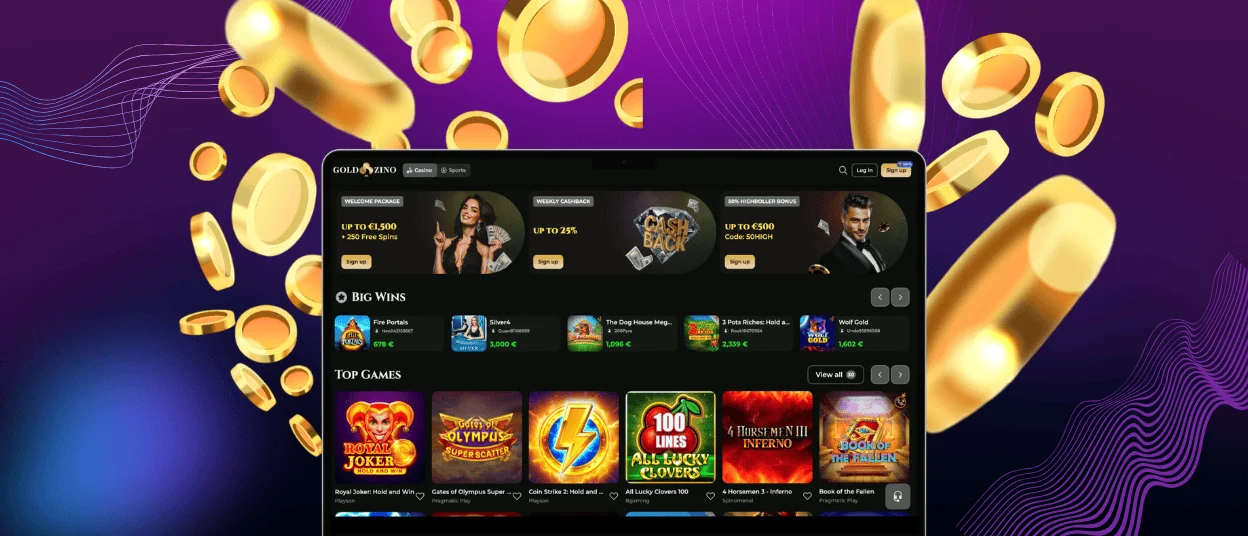
If you prefer a larger screen, open Goldzino in any modern browser on Windows or macOS. The desktop layout shows more of the lobby at once, so browsing feels quicker. It also helps with practical tasks like reading promo terms or uploading files during verification.
Some browsers let you create a desktop shortcut that opens the web application in its own window. This option can give you one‑click access from your taskbar or Dock.
What You Can Do Inside the App
The app view keeps the same main actions you see on desktop. You can open Slots, Live Casino, Table Games, and fast formats such as Aviamasters or Plinko1000. You can activate promotions and track bonus progress in your profile. You can also use the cashier to fund your balance, request a withdrawal, and review transaction history.
We keep support close during play. Open live chat from the menu when you need help with login, verification questions, payment steps, or a game that does not load correctly. Our team works 24/7 and explains the next step in a simple way.
Security on Mobile
We protect mobile sessions the same way we protect desktop sessions. We use encrypted HTTPS connections for logins and cashier actions. If you request your first withdrawal, we may ask for verification to confirm that you own the account.
For everyday safety, use the application only from the official Goldzino domain, keep your device locked, and log out after playing on a shared phone. Ignore any page that offers an “APK” or a separate installer. You do not need it.
Quick Fixes When the App Looks Wrong
Sometimes the Goldzino app may load with layout issues, a frozen live stream, or a redirect that does not open. Follow the steps below to restore the correct view and continue playing.
- Refresh the page.
- Close the app window.
- Open the app again from the Goldzino icon.
- Switch to Wi-Fi if a live stream freezes.
- Switch to mobile data if the stream still freezes.
- Turn off strict ad blockers for Goldzino if a game or cashier redirect does not open.
FAQ
Do I need a separate account for the Goldzino app?
No. You use one Goldzino account on mobile and desktop. Your balance, favorites, and bonus status stay linked to that single profile.
Does the application take storage like a normal download?
The shortcut does not install a full application package. It mainly saves small browser files, which you can clear in your browser settings if you need space.
Can I remove the home screen icon without deleting my account?
Yes. Removing the icon deletes only the shortcut on your device. Your account and history stay on the platform, and you can add the icon again later.
Why can’t I see “Add to Home Screen” on my phone?
Open Goldzino in your main browser, not inside a social app or messenger browser. On iOS, Safari shows the option in the Share menu. On Android, Chrome can show it as “Add to Home screen” or “Install app,” depending on the device. After you confirm, the application icon appears on your screen.
Can I use Face ID or fingerprint to log in faster?
Your device controls biometrics through the browser password manager. If you save your login in Safari or Chrome, your phone can ask for Face ID, Touch ID, or fingerprint before it fills in your details.


